Logging In
Authentication flow, user roles, and multi-factor authentication in OpenRails
Overview
OpenRails uses the Phoenix platform's built-in identity system for authentication. Users log in with their email address and password, with optional multi-factor authentication (MFA) for additional security.
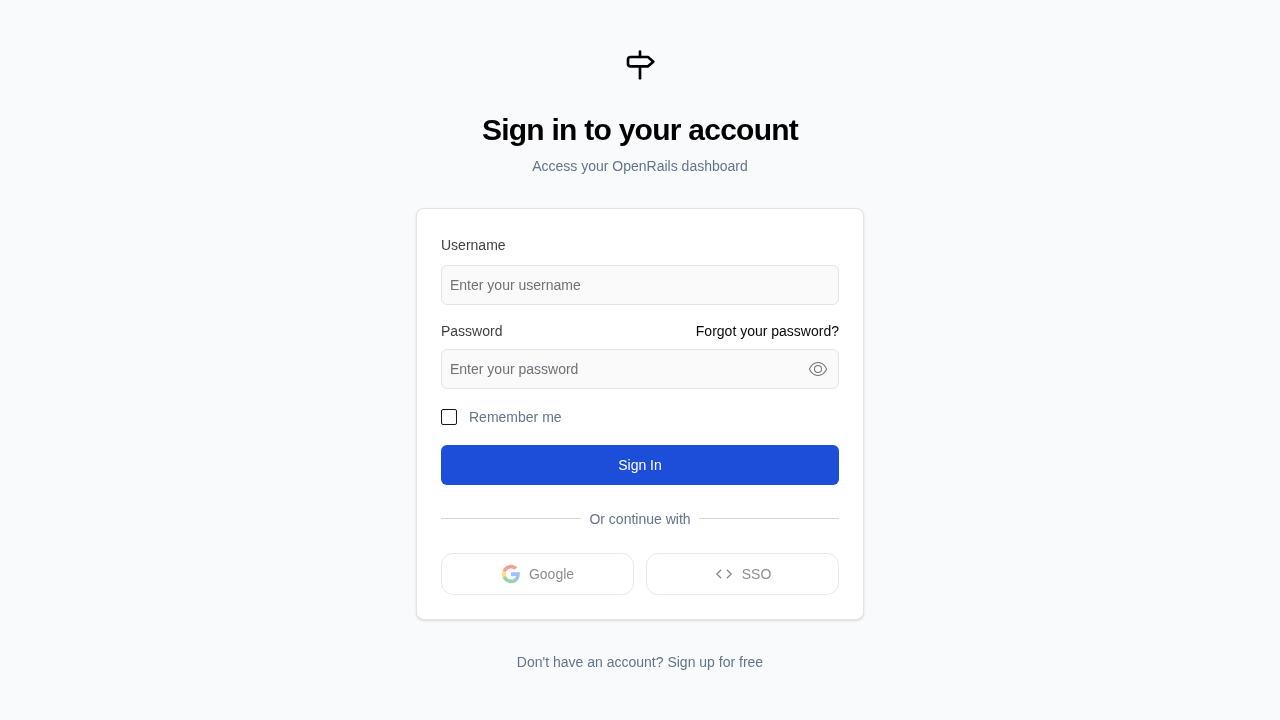
Standard Login Flow
Navigate to the Login Page
Open your browser and go to your OpenRails instance URL. You will be presented with the login screen.
Enter Your Credentials
Type your registered email address and password in the login form fields.
Complete MFA (If Enabled)
If multi-factor authentication is enabled for your account, you will be prompted to enter a verification code from your authenticator app.
Access the Dashboard
After successful authentication, you are redirected to the main dashboard where you can see your projects and recent activity.
User Roles
OpenRails supports the following user roles, each with different permission levels:
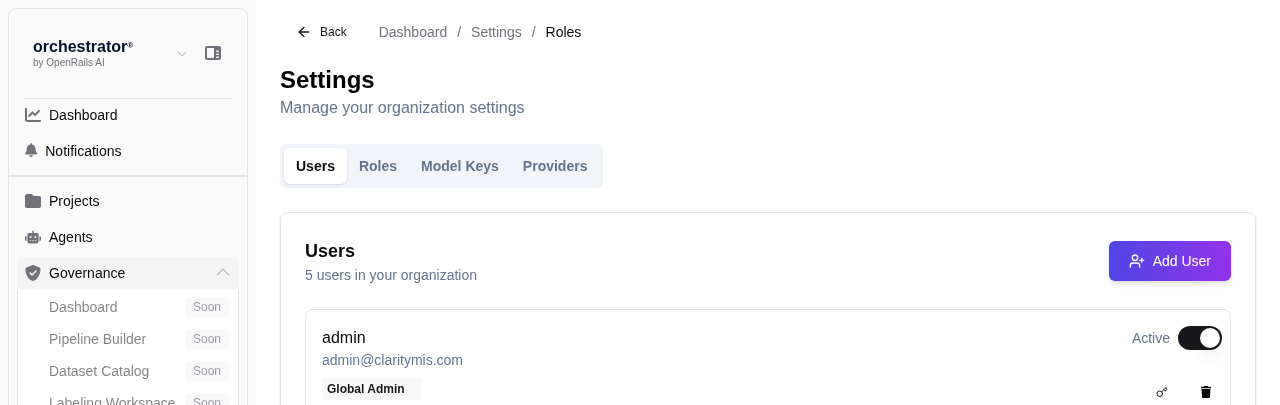
| Role | Description | Key Permissions |
|---|---|---|
| Global Admin | Full system administrator | All permissions, user management, system configuration, LLM key management |
| OpenRails Admin | Application-level administrator | Create/manage projects, manage bots and agents, configure connectors and data lakes |
| Member | Standard user | Access to Company Chat |
Enabling Multi-Factor Authentication
Go to Account Settings
After logging in, click your profile icon in the top-right corner and select Account Settings.
Enable MFA
Under the Security tab, click Enable Two-Factor Authentication.
Scan QR Code
Scan the displayed QR code with your authenticator app (e.g., Google Authenticator, Microsoft Authenticator, or Authy).
Verify and Save
Enter the verification code from your authenticator app to confirm setup. Save the recovery codes in a secure location.