Starting a Conversation
Create a bot, select an LLM model, and begin a multi-turn conversation in OpenRails
Overview
OpenRails Chat supports multiple LLM providers including local AI models, OpenAI GPT-4/5, Anthropic Claude, and Google Gemini. Every conversation belongs to a bot, which stores settings like model selection, system prompt, and linked data lakes for RAG context.
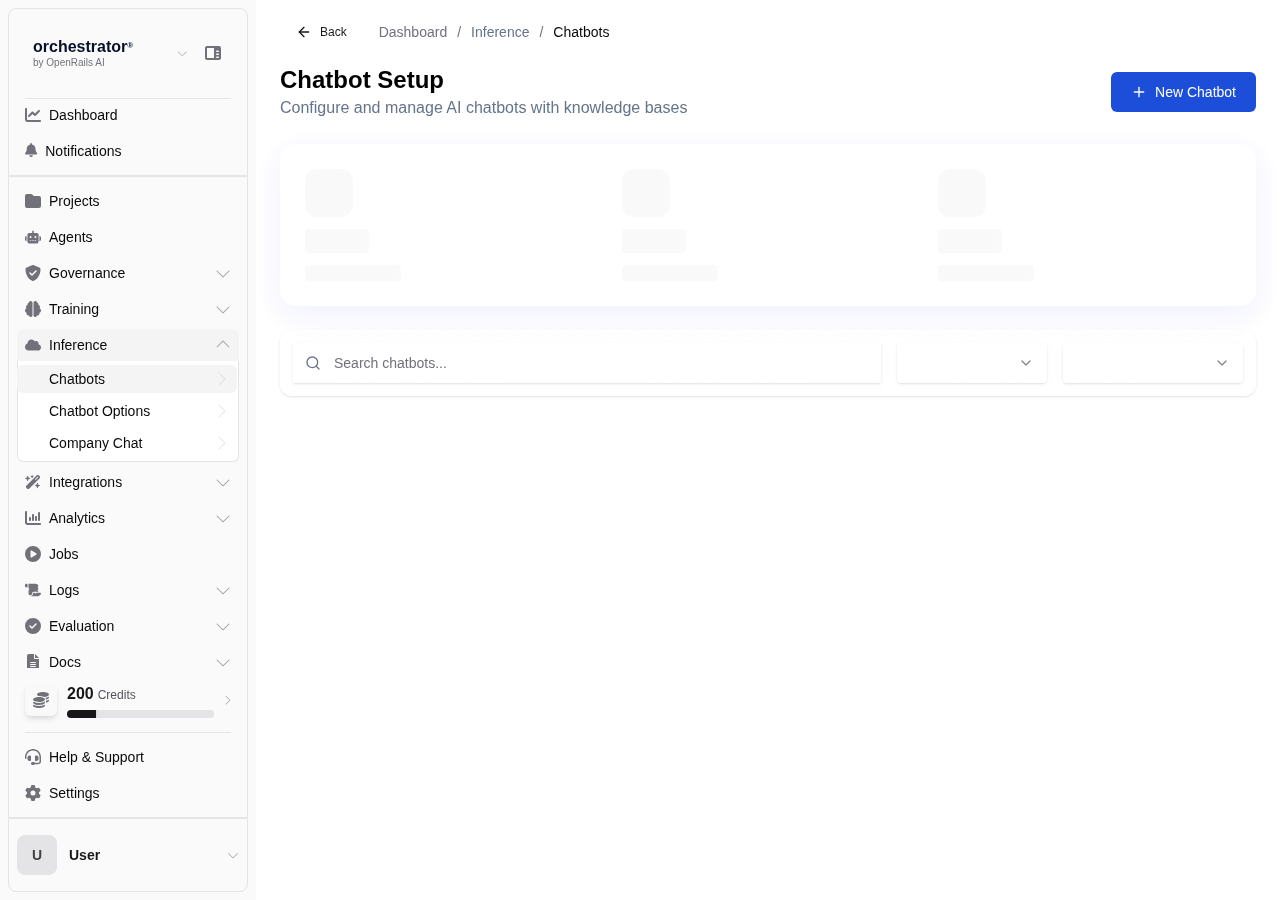
Create a Bot
Navigate to Bots
From the sidebar, click Bots to view the bot list for your current project.
Click "New Bot"
Click New Bot in the upper-right corner to open the bot creation form.
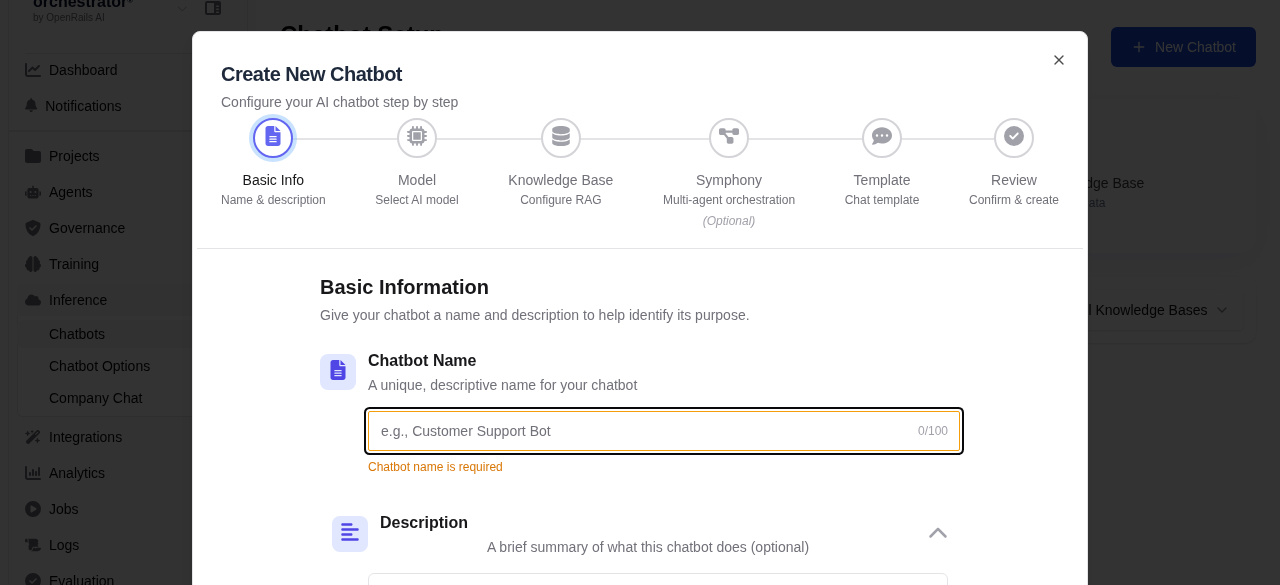
Configure Bot Settings
Fill in the required fields:
- Bot Name — A descriptive name for this bot
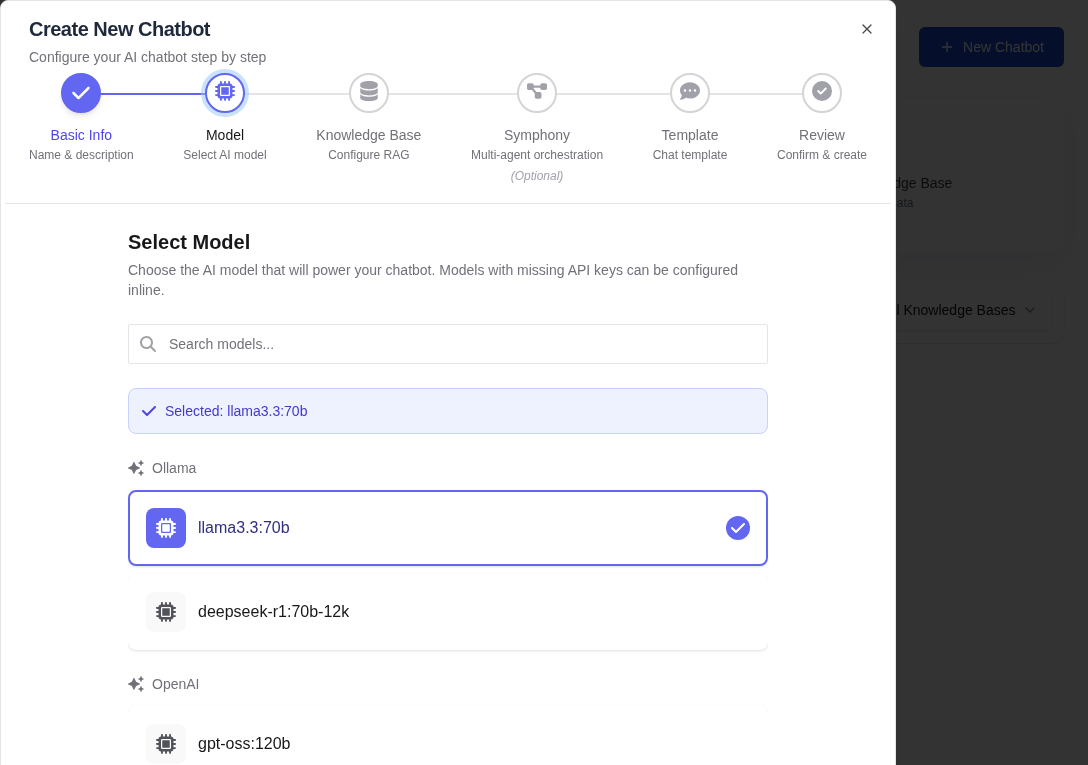
- LLM Model — Select from available models (GPT-4, Claude, Gemini, local models)
- System Prompt — Instructions that define the bot's behavior and personality
- Data Lakes — Optionally link data lakes for RAG context injection
Save the Bot
Click Save to create the bot. You will be taken to the conversation interface.
Start a Conversation
Open the Bot
Click on a bot from the bot list to open the conversation interface.
Type Your Message
Enter your message in the input field at the bottom of the chat panel. Press Enter to send or Shift+Enter for a new line.
View the Response
The LLM response streams in real time. If RAG is enabled, you will see citation indicators linking to the source documents used for context.
Continue the Conversation
OpenRails maintains full multi-turn conversation history. Each message is sent with the complete conversation context, allowing the LLM to reference earlier parts of the discussion.
Model Selection Reference
| Provider | Models | Best For |
|---|---|---|
| Local AI Models | Llama 3, Mistral, Phi | Privacy-sensitive tasks, offline usage, cost-free inference |
| OpenAI | GPT-4, GPT-4o, GPT-5 | General-purpose tasks, code generation, analysis |
| Anthropic | Claude 3.5 Sonnet, Claude 4 Opus/Sonnet | Long-form content, careful reasoning, document analysis |
| Gemini 1.5 Pro, Gemini 2.0/2.5 | Multimodal tasks, large context windows |